 Print Sajao
ID Card Print Online on 4×6 Paper
Guide updated 15 October 2026 · Based on the current Print Sajao controls.
Arrange existing Aadhaar, voter, ration or Ayushman card files for printing. The ID Card Print tool works with a card PDF or front and back images and provides a preview before you unlock the output.
Open the existing print tool →Choose a card PDF or front and back images
Upload one PDF for the card job, or select images for the two sides. Recognised layouts can be arranged automatically. If a format is not recognised, inspect the uploaded page and use Crop Front and Crop Back to choose the correct regions. An uploaded source preview does not mean both print sides are ready.
Check details with the existing editing tools
Crop and rotation help remove extra page area. Colour depth and brightness controls can improve an otherwise readable source. Use the enlarged preview to inspect names, numbers and photographs. Editing cannot recreate unreadable details or establish whether a document is valid.
ID card 4×6 print settings
The card frames use the existing 85.6×53.98 mm layout on a 4×6 sheet. Choose the matching paper size and actual size / 100% where supported. Printer scaling can change dimensions. Test on plain paper before printing final copies.
Use the appropriate card guide
For Aadhaar, read the password and front/back guidance. For voter cards, check whether the uploaded format contains both sides. For WB ration cards, check automatic layout detection and use manual cropping when needed. These guides all open the same existing ID Card Print tool.
Read the front/back sheet before printing
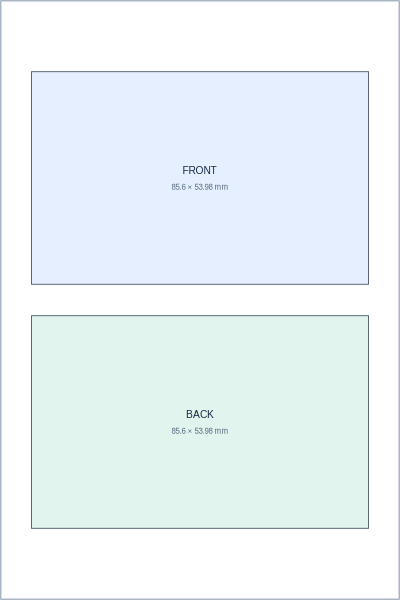
The website arranges two sides on one page. It does not control the printer’s duplex unit or produce a plastic PVC card. If you have separate image files, assign each to its intended slot and check that neither is rotated upside down.
Example: clear front image, back image with extra space
- Upload the front image into FRONT. Upload the back image into BACK; selecting a back file should not replace the front.
- Open Free crop for the back and remove surrounding desk or scanner space. Keep the full required printed region.
- Apply the crop, compare the two sides and inspect readable details. Use the preview rather than assuming an upload is already print-ready.
- Unlock the finished sheet once. If paper jams, retry the unchanged sheet from the same account; avoid making unnecessary edits before retrying.
Diagnose a wrong-sized or incomplete ID print
- One side is missing in the website preview
- Correct its file, source page or crop before printing. Printer settings cannot add a side that is missing from the generated sheet.
- The website and downloaded PDF show both sides, but paper does not
- Check driver paper size, orientation and scaling. Use one page per sheet and the matching 4×6 preset; duplex and booklet modes are different workflows.
- The cut card is too small
- Check whether the PDF viewer used Fit or Shrink. Print at Actual size / 100% and measure a test frame; also check driver borderless expansion.
Frequently asked questions
Can I upload a card PDF that is not detected?
Yes. Inspect the source preview and crop the front and back manually, then check the output preview.
Does this website issue identity cards?
No. Print Sajao arranges documents you already have. It is an independent service and is not a government document issuer.
Are card PDFs stored on the account server?
The card PDF and images are processed in your browser. Account, usage and recharge records are retained separately, as described in the privacy page.
Related printing and PDF guides
Aadhaar Card Print Online: Front and Back on 4×6 · Voter Card Print Online on 4×6 Sheets · WB Ration Card Print on 4×6 Paper