 Print Sajao
Passport Photo Maker for 4×6 Sheets
Guide updated 15 October 2026 · Based on the current Print Sajao controls.
Prepare a passport photo sheet from photos you already have. Print Sajao combines selected photos on 4×6 inch paper, with individual size and copy settings. Use the existing editor to check framing, colour and sheet margins before printing.
Open the existing print tool →Passport size photo maker: choose dimensions
Choose 30×35 mm, 35×45 mm, 2×2 inch or a custom size. These are layout choices, not a guarantee that a photo meets a particular passport or visa requirement. A 2×2 inch photo measures 50.8×50.8 mm. Check the dimensions and background required by the receiving authority.
Create a passport photo 4×6 sheet
Upload JPG, JPEG, PNG or WebP photos. Select a photo, choose its size and number of copies, then create the sheet. You can upload up to 12 source files; this is different from the number of photo copies that fit on paper. Smaller photos may fit more than 12 copies. The maximum depends on size, sheet margin, spacing and other photos already on the sheet.
Crop, light and background adjustments
Use crop and rotation for framing, Light & colour for brightness, contrast, shadows, highlights and saturation, and Face & background for optional face centring and background replacement. Cleanup / Hair edges includes erase, restore and smoothing brushes. Pick a background colour from the photo when cleaning an edge. Inspect hair and face details in the enlarged preview.
Print at the intended photo size
The sheet is 101.6×152.4 mm. Set the printer to 4×6 paper and actual size / 100% where available. Borderless enlargement or fit-to-page settings can change individual photo dimensions. The editor provides a sheet margin setting; test one sheet and measure a photo before making multiple copies.
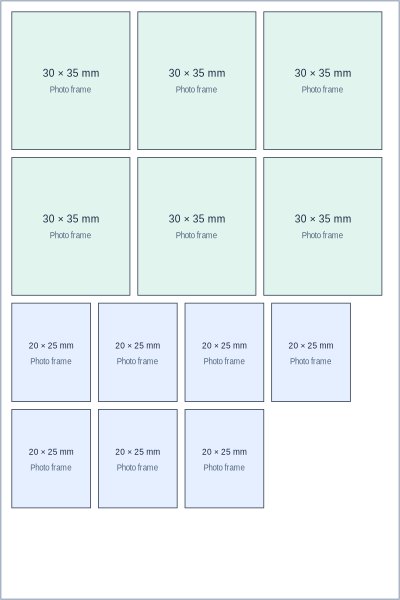
Worked example: seven small photos and a second size
A shop customer needs seven 20×25 mm photos; the next customer needs 30×35 mm photos. This is one mixed-size job, not two separate sheets. With a 3 mm sheet margin and the tool’s 2 mm spacing, the current layout calculation fits seven small photos and six larger photos.
- Upload the two source photos. Select the first photo, choose 20×25 mm, and set 7 copies.
- Select the second photo and choose 30×35 mm. Leave Sheet margin at 3 mm and choose its calculated Max: 6 for this example.
- Check each selected photo’s crop and copy count. Inspect the whole sheet, then use the normal print or download action.
How many photos fit with a 3 mm margin?
These single-size examples use the current calculator. The tool does not rotate frames to fill unused space. The 2×2 inch preset uses zero inter-photo gap; the other sizes below use 2 mm.
| Photo size | Copies | Gap |
|---|---|---|
| 20×25 mm | 20 | 2 mm |
| 30×35 mm | 12 | 2 mm |
| 35×45 mm | 6 | 2 mm |
| 2×2 inch (50.8×50.8 mm) | 2 | 0 mm |
Changing the margin, size or another photo’s count changes Max. This table describes layout capacity, not the photo specification for a passport application. Follow the instructions supplied by the organisation receiving the photo.
Solve framing and hair-edge problems
- The face is too large after choosing a size
- Select that photo and adjust its crop before creating the sheet. Check chin, hair and shoulders inside the selected frame; paper dimensions and face framing are separate choices.
- A light halo remains around dark hair
- Inspect at a larger preview size. Apply a suitable background colour, then use a small Erase to background brush only on unwanted edge pixels. Restore returns removed detail; Smooth can soften an edge but may blur fine hair. Avoid painting across the face.
- The selected photo has fewer copies than expected
- Another photo, its dimensions or the sheet margin is using space. Select each photo in turn and read its own Max rather than the total source-file count.
Frequently asked questions
Can I make a 30×35 or 35×45 passport photo?
Yes. Choose the required size in the existing passport photo editor and check the preview. Confirm that size is accepted for your application.
Is the passport photo sheet limited to 12 copies?
No. Up to 12 source photo files can be uploaded, while the copy limit is calculated from photo dimensions, sheet margin, spacing and the other photos on the sheet.
Can I mix different passport photo sizes?
Yes. Select each uploaded photo and set its size and copy count. The editor calculates the available capacity for the mixed sheet.
Related printing and PDF guides
4×6 Photo Print and Sheet Maker · ID Card Print Online on 4×6 Paper · Merge PDF Files Online